Want to merge audio and video online without installing software? This free video audio combiner helps you add music, attach a voiceover, or replace a noisy soundtrack—then export a clean MP4 ready to share.
Built for everyday creator work: social clips, tutorials, interviews, and presentations. Focus on content, not a complicated timeline editor.
Why choose this video audio combiner?
A solid video and audio merger should feel fast, predictable, and transparent. This tool is designed so you can merge audio and video with minimal friction—add a soundtrack, swap a track, or sync narration without learning a full editor.
Processing is designed to run in your browser so files stay on your device when supported—ideal when you care about keeping clips local.
Turn around social clips, tutorials, and simple edits without building a multi-track timeline. Upload, choose a mode, export.
Replace the original soundtrack entirely or mix new audio underneath dialogue for natural background music.
Works well with typical types such as MP4/MOV video and MP3/WAV/AAC audio for broad playback compatibility.
Benefits for everyday creators
- Ship voiceovers and music beds without desktop software.
- Keep dialogue clear when you mix instead of replace.
- Export MP4 for phones, social apps, and presentations.
How to merge audio and video (simple steps)
If your goal is to merge audio and video online free, keep the workflow short. Most users get a clean result in four steps:

- 1
Choose your video
Pick the clip you want to enhance—talking head, product demo, travel footage, or a slide recording.
- 2
Select your audio track
Music, voiceover, or a cleaned recording. Prefer clear speech and consistent loudness for best results.
- 3
Pick a mode
Replace the original audio or mix both tracks so dialogue stays while music sits underneath.
- 4
Export
Download the merged file—commonly MP4 for broad compatibility on phones and platforms.
This path is ideal when you need to merge video and audio online for quick publishing without learning complex editing tools.
Replace vs mix: choose the right merge option
Not every video and audio combiner gives the same control. The two most common workflows are replace and mix—pick based on whether the original sound is usable.
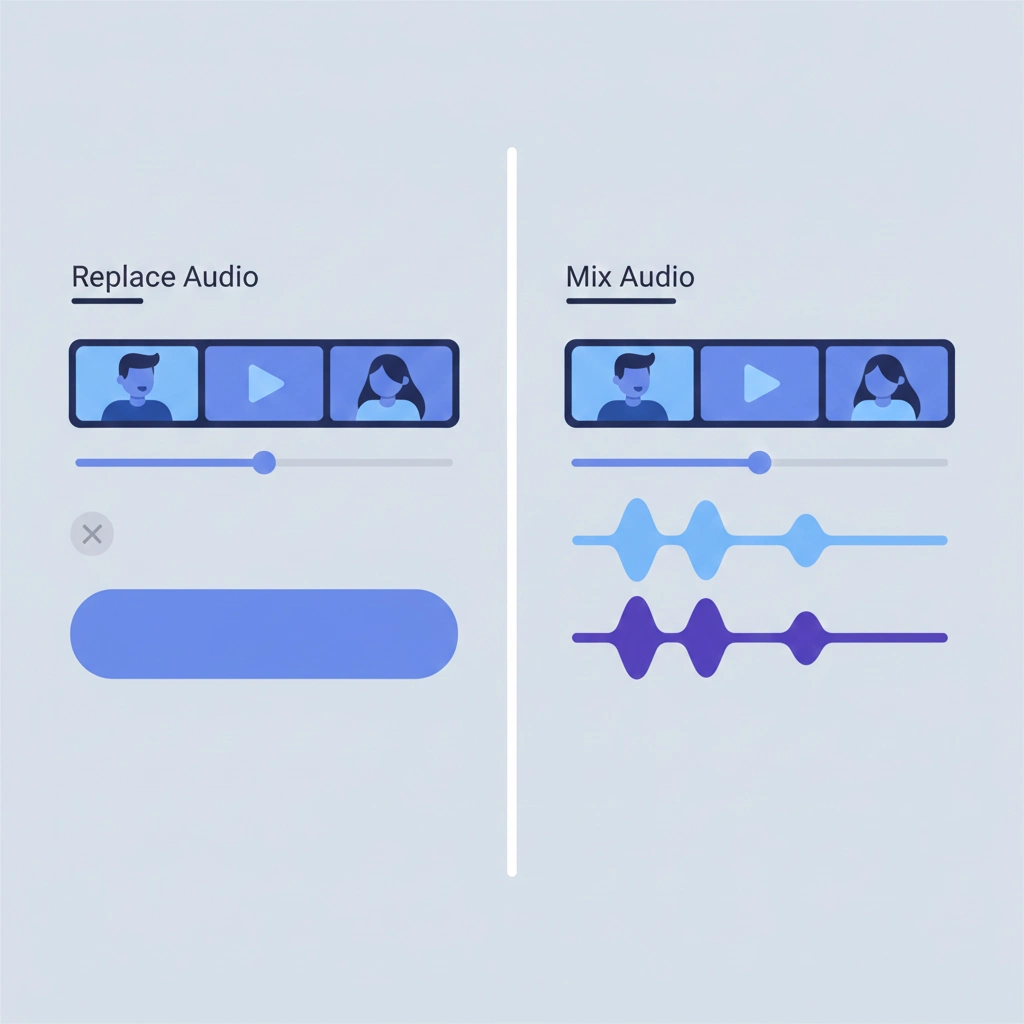
Replace original audio
Best when original sound is unusable (wind, distortion, chatter). Cleanest way to combine audio and video when you need one controlled soundtrack.
- • Full control over the final track
- • Ideal for damaged or noisy recordings
- • Simple voiceover swap
Mix new audio with existing sound
Perfect for background music while keeping dialogue. For YouTube explainers or interviews, mixing often feels more natural.
- • Keep speech and ambient detail
- • Layer music under vocals
- • Balance levels for clarity
Searching for an audio video merger to add music quietly under speech? Choose mix—and keep music lower than vocals so words stay clear.
Tips for the best results (sync, loudness, and exports)
When you merge audio and video, most issues come from mismatched lengths or audio that is too loud. Use this checklist before you export.
Quick quality checklist
- Match duration: if audio is shorter, trim the video or loop/extend the track intentionally.
- Balance loudness: background music should sit under speech so vocals never feel muffled.
- Preview with headphones: catch clipping, pops, or sudden volume jumps early.
- Export for compatibility: MP4 with AAC audio is a safe default for most platforms.
These habits help whether you use a video and audio merger for social media, lessons, or demos—especially when you merge video and audio online and need reliable phone playback.
Troubleshooting common merge problems
If your video audio merger online result looks or sounds off, it is usually one of these cases.

Audio is out of sync
Try a different audio format (for example WAV instead of MP3) or re-export audio at a standard sample rate such as 44.1 kHz. Variable frame rate video can also cause drift—re-encoding the video in a standard editor often stabilizes timing.
No sound after export
Confirm the source audio is not muted and is supported by your browser. On older devices, try a shorter clip or close heavy tabs to free memory when you merge audio and video online free.
Processing takes too long
Large files take longer, especially on mobile. Reduce resolution, trim unused footage, or split into shorter segments. Many users get faster results by exporting shorter sections first.
Best use cases
- YouTube explainers & tutorials
- Short-form clips with clean music
- Voiceovers for presentations
- Interview footage with improved audio
Privacy note
This page is designed around in-browser processing so files typically stay on your device. Results can vary by browser and file size; for very large projects, split clips for smoother performance.
Popular searches
People often arrive via video and audio merger, merge video and audio online, and video and audio combiner. The guide above matches those intents with a clear workflow.
Conclusion & next step
Whether you need an audio video merger for a quick voiceover or you want to merge audio and video for a polished soundtrack, this workflow stays clean: upload, choose replace or mix, preview, then export.
Ready when you are—add your files, check levels once, and download an MP4 that sounds right on first play.
Merge audio and video online in your browser—private, simple, MP4-ready.
Upload video and audio, pick replace or mix, then export. One focused tool for music, voiceovers, and clean soundtracks.
Merge audio and video online now